A free subscription tracker spreadsheet (and when to ditch it)
A ready-to-copy subscription tracker spreadsheet template for Google Sheets or Excel - the exact columns to use, how to total annual cost, and the point where an app saves you the upkeep.
A spreadsheet is the most private way to track subscriptions - nothing is linked, nothing is shared. Here is a template you can rebuild in two minutes, the columns that actually matter, and an honest look at where a spreadsheet stops being enough.
Plenty of people track subscriptions in a spreadsheet, and for good reason: it costs nothing, links to nothing, and you control every field. The trick is setting up the right columns so the sheet answers the only two questions that matter - how much am I really spending a year, and what renews next?
The Columns to Use
Keep it to the fields that drive a decision. Anything more and you stop maintaining it:
The seven columns a subscription sheet needs
Column
What it holds
Service
The name of the subscription (Netflix, Spotify, iCloud+)
Cost
The amount charged each cycle
Billing Cycle
Monthly, annual, quarterly, or weekly
Renewal Date
The next date it charges
Category
Streaming, software, fitness, news - so you can spot overlap
Payment Method
Card, PayPal, App Store - so you know where to cancel
Annual Cost
A calculated column normalising everything to a yearly figure
The One Formula That Matters
The Annual Cost column is what turns a list into insight. Normalize every subscription to a yearly number so a $15/month service and a $120/year service are directly comparable. In Google Sheets or Excel, with Cost in column B and Billing Cycle in column C, put this in the Annual Cost column:
Then total the Annual Cost column with =SUM(...) at the bottom. That single number - your true yearly subscription spend - is almost always higher than people expect, because monthly charges hide how much they add up to over a year. If you want the total before you build the sheet, our free subscription cost calculator does the same normalisation in the browser - no signup, nothing stored.
Make Renewals Visible
Add conditional formatting on the Renewal Date column to highlight anything due in the next seven days. It is the closest a spreadsheet gets to a reminder - but you only see it when you happen to open the sheet, which is the catch.
Where a Spreadsheet Falls Short
A spreadsheet is excellent at holding data and terrible at three things that actually stop wasted money:
No reminders - it cannot ping you before a renewal; you have to remember to look
No discovery - it only contains what you manually found and typed, so anything you forgot stays invisible
Upkeep - every new signup, price rise, or cancellation is a manual edit, and sheets drift out of date fast
The discovery gap is the big one. The subscriptions costing you the most are the ones you forgot about - and a spreadsheet, by definition, never contains those.
When to Move From Sheet to App
If you like the control of a spreadsheet but want the parts it cannot do - automatic discovery of forgotten subscriptions and reminders before each renewal - a dedicated tracker is the upgrade. Suprascribe keeps the spreadsheet virtues that matter: it needs no bank access, and the free tier lets you add unlimited subscriptions by hand just like a sheet. The difference is that it can also scan your inbox to find the ones you would never have added, and it actually reminds you before a charge lands.
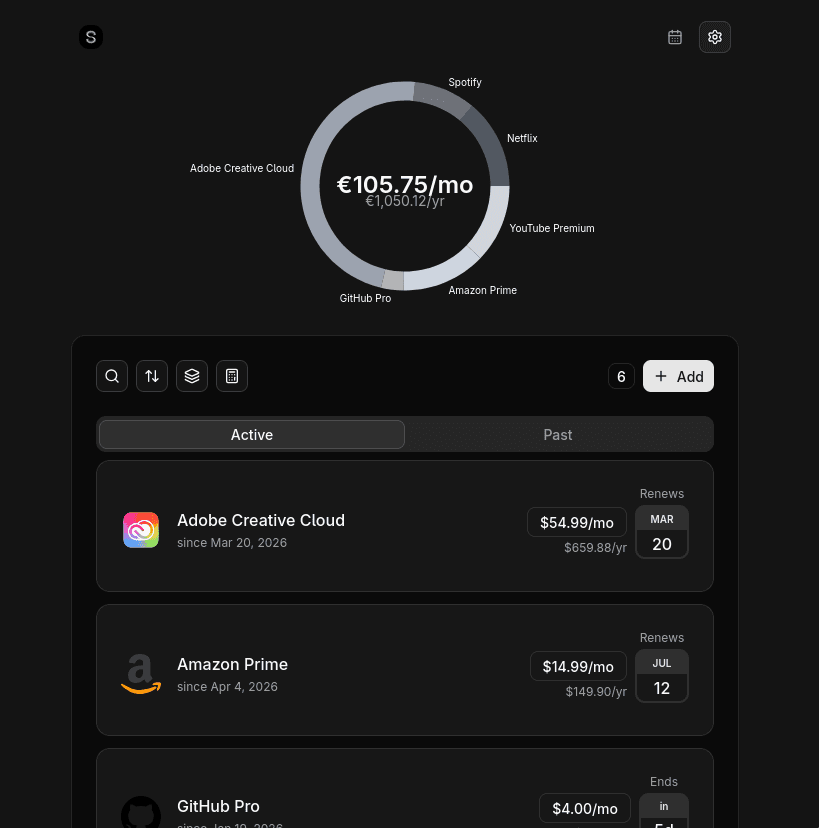
The same columns a sheet holds, except the monthly total, the annualised cost and the days-until-renewal are computed rather than typed.
The fastest way to find every subscription you are paying for is to let a scanner read the receipts already sitting in your inbox. Here is how automatic discovery works, and how it compares to doing it by hand. No bank connection is involved - every subscription you have ever started sent you a receipt, so the record you need is already in your email.
Not all free subscription managers are equal. Some cap features, some require bank access, some charge a monthly fee to manage your monthly fees. Here is how to pick the right one.
The subscriptions draining the most money are the ones you never see, because they hide behind cryptic statement labels and app-store billing. This is a straightforward audit that surfaces all of them in about half an hour.